New feature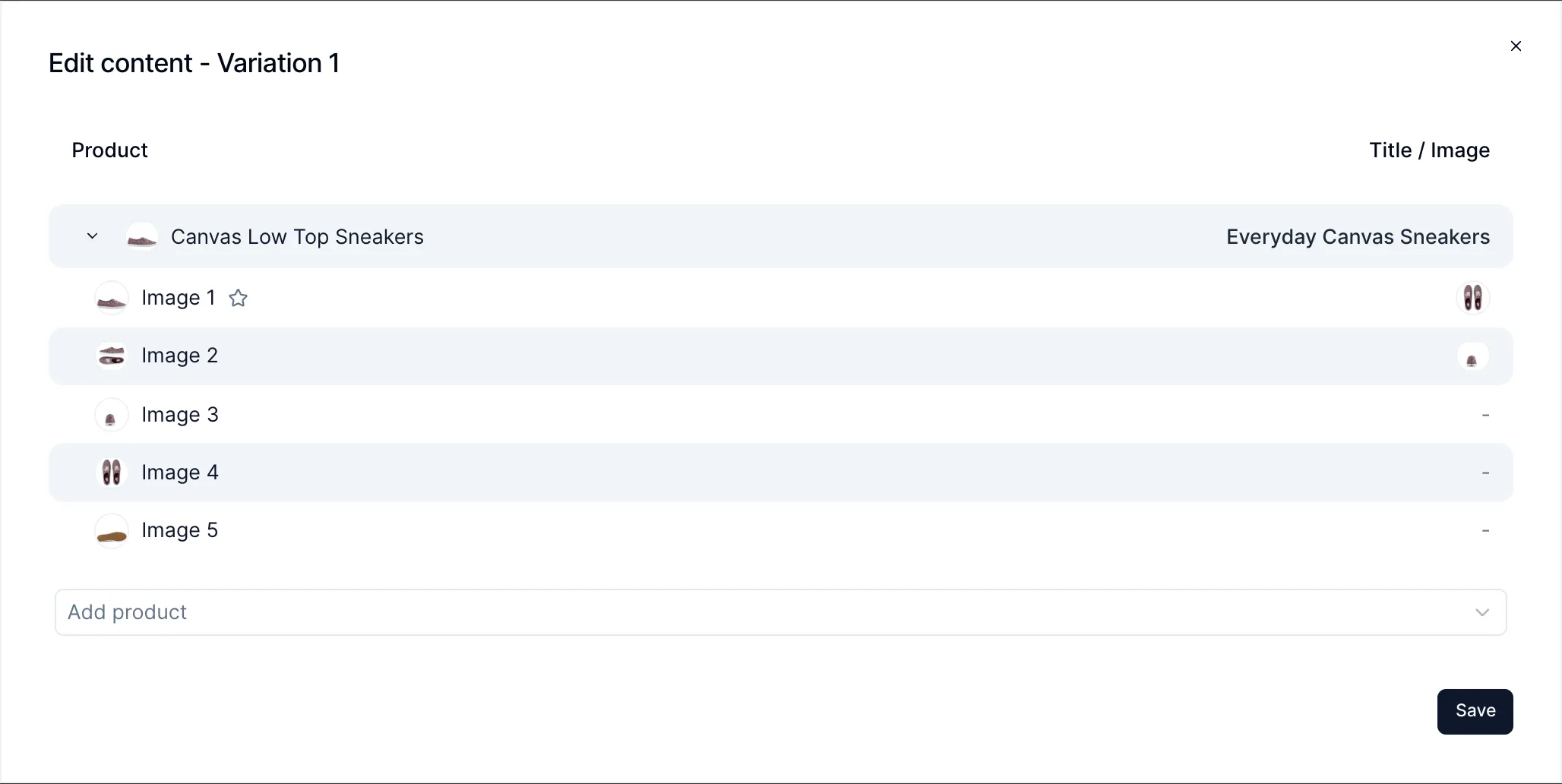
Test and personalize product titles and images
Product campaigns can now change a product's title and images, not only its price. Find out which name or photo sells more, or show a different one to a specific audience, without touching your catalog.
How to use it
- Create a Product campaign and choose your products.
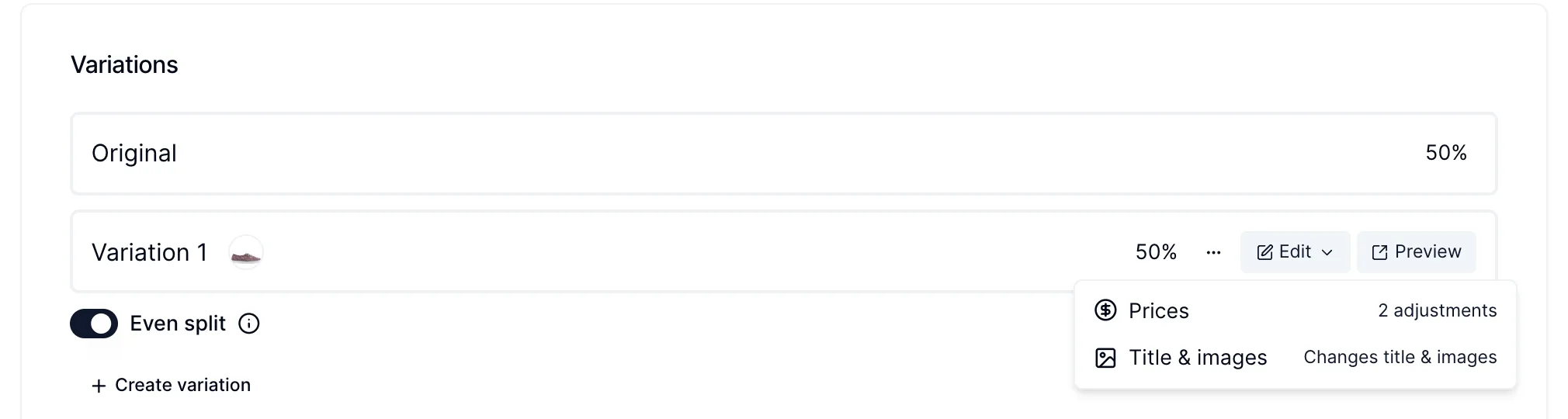
- On a variation, click Edit and pick Title & images. Prices is the same menu, so one variation can change the price, the title and the images together.
- Click a product's title to type a replacement. Click an image to pick a replacement, or upload a new one.
Title changes need a Title selector in your campaign settings. Image changes work without any extra selector.
What your visitors see
- The new title and images replace the originals wherever the product appears on your storefront. They stay hidden until they are replaced, so the original doesn't flash.
- Replaced images are also swapped outside the product, for example in a cart drawer.
- On Shopify Plus, the cart line shows the new title and the replacement of the product's featured image. Your theme's cart needs to use
item.title, notitem.product.title, for the new title to show. - On other plans, visitors buy the duplicate product, which has the same title and images as their variation. If you clear a change, the duplicate goes back to your original product.
Deploying a winner
Deploying a variation writes its title and images to your real products, and it can't be undone in Personizely. The images it replaces are removed from the products but stay in your Shopify files, so you can add them back in Shopify.